Use cases · Bloggers, creators and marketers
Turn an RSS feed into social media posts automatically
Last updated 2026-11-01 · by Venu Gopal Reddy Muvva, founder
To share every new blog post or video without copying links by hand, connect its RSS feed to your scheduler. In SocialPostScheduler, RSS automation checks your feed every 30 minutes and turns each new item into a draft for review or a post in your next queue slot, using a template with {title}, {link} and {summary}. You schedule on demo channels today; live posting is coming soon.
How to do it in SocialPostScheduler
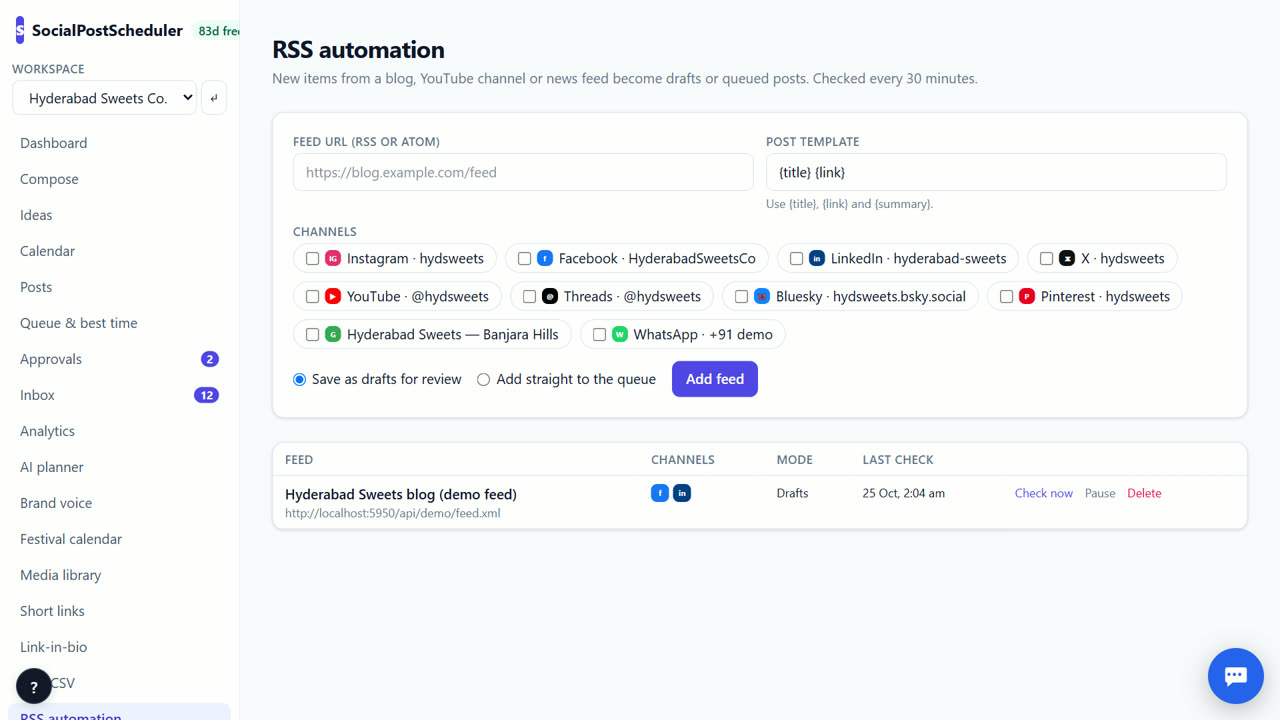
- 1Find your feed URL
Most blogs have one at /feed or /rss. YouTube channels and news sites have RSS or Atom feeds too.
- 2Add the feed
Open RSS automation, paste the feed URL, pick the channels and choose Add feed.
- 3Write the template
Use {title}, {link} and {summary} to shape the post, for example: New on the blog: {title} {link}.
- 4Choose drafts or queue
Drafts mode puts new items in Posts → Drafts for review. Queue mode drops them into each channel's next queue slot.
- 5Check and manage
Use Check now to test it. The first check imports the 3 newest items. Pause, Resume or Delete the feed from its row.
Drafts or queue: which to pick
Start with drafts mode. You see how the template reads for real titles before anything is scheduled. Edit a draft, use 🔀 Tailor per network, add an image, then schedule it.
Move to queue mode once the template reads well and you trust the feed. Set your weekly slots in Queue & best time first, so new items land at sensible times.
Write a template people will click
A bare title and link looks automated. Add a short lead-in that fits your voice, such as "Fresh this week:" or "Three minutes, one useful idea:". Use {summary} on networks with room, like LinkedIn, and keep X short.
Turn on auto-shorten so links become short links with UTM tags. Short-link clicks are counted for real, so you can see which articles people open.
Avoid duplicates and dead feeds
The same item is not imported twice. If a feed stops working, the error shows on the feed row, so check the page now and then. If you also bulk import or share posts by hand, skip those articles to avoid posting twice.
One feed per source is enough. If you run a blog and a YouTube channel, add two feeds with two templates, so a video post can say "New video" and an article can say "New on the blog".
When SocialPostScheduler is not the right tool
If you need new articles to appear on your real LinkedIn or X page within minutes today, SocialPostScheduler cannot do that yet; it schedules to demo channels until live posting arrives. Feeds are checked every 30 minutes, so it is not for breaking news that must go out the same minute.
Questions
- How often is the feed checked?
- Every 30 minutes. You can also choose Check now.
- Does it work with YouTube?
- Yes. Paste a YouTube channel's feed URL and new videos become drafts or queued posts.
- Does RSS automation cost anything?
- SocialPostScheduler is free for your first 3 months (90 days from sign-up), with every feature on and no card needed. After that you pay only for what you use, at our cost with no markup. RSS automation is scheduling work, so it is not metered. If you then use AI to rewrite a post, that AI use is charged from your wallet after the free period.
- Will old posts flood my queue?
- No. The first check imports only the 3 newest items.
Related: Evergreen social media post recycling, on autopilot · Bulk schedule social media posts from a CSV file · SocialPostScheduler vs Buffer · Pricing