Use cases · Agencies and freelancers
Client approval for social media posts, with no login
Last updated 2026-11-01 · by Venu Gopal Reddy Muvva, founder
The fastest way to get client approval is one private link where the client reads each post and approves or comments, with no account to create. SocialPostScheduler adds multi-step approvals in Settings → Approvals and gives every post waiting for sign-off a Client link (no login needed). Approved posts move on to the schedule; requested changes go back to draft.
How to do it in SocialPostScheduler
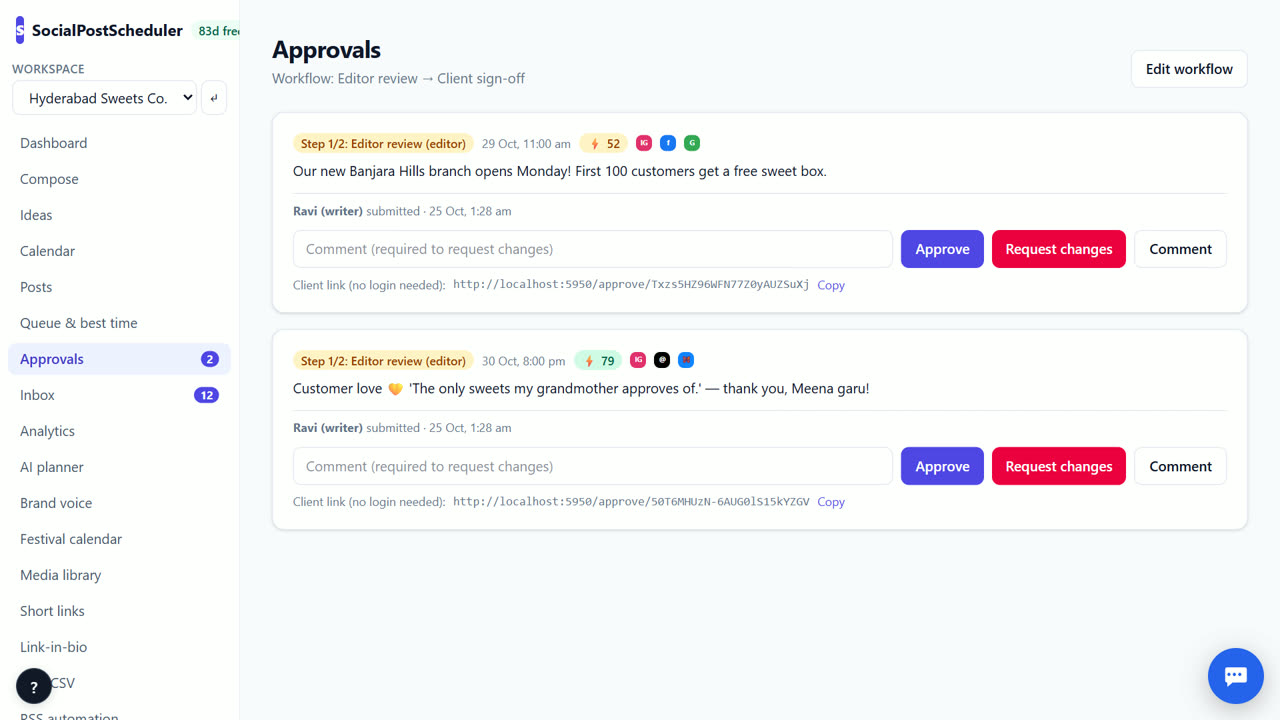
- 1Build the workflow
Open Settings → Approvals. Choose + Add step and pick Any editor, Any admin or Client. Order the steps with the arrows, then Save workflow.
- 2Add writers as contributors
Open Settings → Team and invite writers with the Contributor (needs approval) role. Their posts go to Approvals automatically.
- 3Write the posts
Create posts in Compose or with AI planner. Contributors' posts wait in Approvals instead of being scheduled.
- 4Share the client link
Open Approvals, copy the Client link (no login needed) next to the post and send it to your client.
- 5Act on the answer
Each step uses Approve, Request changes or Comment. After the last step the post is approved and scheduled.
Why email approval breaks down
Approving posts over email means screenshots, lost threads and "which version is final". A link to the real post fixes that. The client sees the exact text that will be scheduled, and every comment sits next to the post.
It also gives you a record. When a client later asks why a post went out, you can show who approved it and when. That protects you and keeps the relationship calm.
Design a short workflow
Two steps are enough for most teams: an internal check by an admin, then the client. More steps mean more waiting. Owners and admins publish directly, so keep the workflow for contributors and client work.
Tell the client what you need from them: check facts, prices and dates, not commas. Ask them to use Comment for small notes and Request changes only when a post should not go out.
Give clients a deadline
Send the month's link with a clear date, for example "please review by Thursday". Turn on email alerts in Settings so you know when an approval is requested. Webhooks can also send approval.decided to your own tools.
SocialPostScheduler is free for your first 3 months (90 days from sign-up), with every feature on and no card needed. After that you pay only for what you use, at our cost with no markup. Approvals are not metered.
When SocialPostScheduler is not the right tool
If you need approved posts to go live on the client's real accounts right away, SocialPostScheduler cannot do that yet. You schedule on demo channels today; live posting is coming soon. If your client wants to approve inside their own project tool, you may prefer a tool built into that.
Questions
- Does the client need to sign up?
- No. The Client link (no login needed) opens the post for review without an account.
- What happens when the client requests changes?
- The post goes back to draft with the comment, so the writer can fix it and send it again.
- Can I have more than one approval step?
- Yes. Add steps in Settings → Approvals. Each step approves in order.
- Can I put my agency logo on the approval page?
- Yes. Settings → White-label sets your name, logo, colour and domain on the client approval portal.
Related: A social media planner for agencies with many clients · How to plan social media content for a month · SocialPostScheduler vs Hootsuite · Pricing